





WWDC 2026 was a doozy of an event, with Apple unveiling not only iOS 27, but a broad new wave of AI-powered features designed to make the iPhone feel a whole lot smarter.
While the headline act is the long-awaited Siri overhaul, that’s only part of the story; Apple is also bringing more intelligent features to core apps like Safari, Photos, Phone, Calendar and Home, alongside upgrades to Shortcuts and Image Playground.
But, as is always the case, developers need to get their apps ready for the big release, likely sometime in September, so Apple has seeded a developer beta of the latest software update following the big announcement.
This early beta release is likely to be filled with bugs and glitches, but if you simply can’t wait until later this year to give it a spin, here’s how you can download and install the iOS 27 developer beta on your iPhone.
Supported devices
While there were plenty of rumours ahead of iOS 27’s big reveal that it’d cut support for a bunch of iPhones, that actually wasn’t the case.
Instead, iOS 27 is set to be available for all iPhones that support iOS 26, which essentially means the iPhone 11 and later – not bad for a phone that came out way back in 2019.
For ease, here’s a complete list of all iPhones that support iOS 27
- iPhone 17 series
- iPhone Air
- iPhone 16 series
- iPhone 15 series
- iPhone 14 series
- iPhone 13 series
- iPhone 12 series
- iPhone SE (second- and third-gen)
- iPhone 11 series


That said, the Siri AI and Apple Intelligence features aren’t set to come to all devices, with some of the most impressive AI-related announcements of WWDC 2026 relegated to the iPhone 17 Pro and iPhone Air.
Even then, Siri AI isn’t actually available just yet, with the new chatbot instead scheduled for release sometime after the public rollout of iOS 27 later this year.
A word of warning
Now, before we get any further, it’s worth explicitly saying that this is a very early beta for iOS 27 intended for developers, and certainly not to be installed on your primary device. If you do, you’ll likely experience early bugs and excessive battery drain – and getting back to iOS 26 requires a complete reset of your iPhone.
That said, it’s also worth saving your last iOS 26 backup on your PC or Mac, as you can’t restore from an iOS 27 backup on iOS 26 if you go back. Translation: if you don’t ensure you keep an iOS 26 backup, and you change your mind about iOS 27 after a few days, you’ll have to start from scratch.
Getting an Apple developer account
As the name of the beta suggests, the iOS 27 developer beta is intended for developers only, and that means you’ll need an Apple Developer account to get access.

The good news is that, if you’re an iOS developer, you’ll already have access to a developer account – but for those simply too keen to wait for the more stable Public Beta, there is an easy way to upgrade your Apple ID to a developer account – and because it falls under basic use, you don’t need to pay the £99/$99 subscription fee either.
If you’re committed to testing the early iOS 27 beta, you need to head over to the Apple Developer portal and sign up as an individual developer. Once you’ve filled out all the required forms and signed up, you’re ready to start the install process on your iPhone – no beta profile faff required.
Installing the iOS 27 developer beta
The first step to installing the iOS 27 developer beta is to verify that you’re logged in to the same Apple ID on your iPhone that you just enrolled for a Developer account.
This is pretty easy to do; just open the Settings app and tap your iCloud account at the top of the page. From here, you’ll be able to see the associated email address of the iCloud account currently in use.
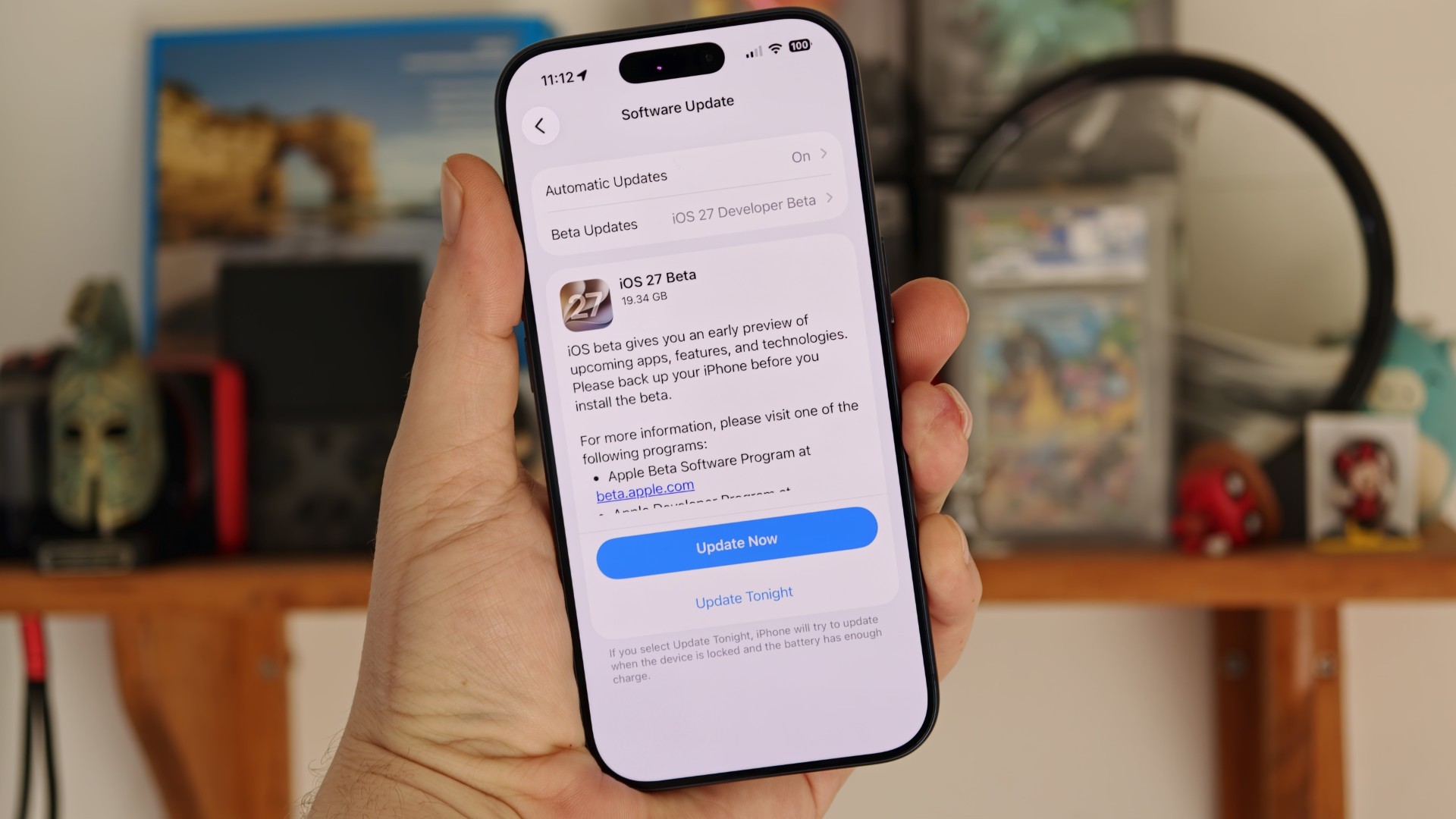
Once you’re logged in with the correct account, it’s time to actually install the beta – but going to the Software Update menu (Settings > General > Software Update), you won’t see the beta ready for installation just yet.

Instead, tap Beta Updates, then tap iOS 27 beta from the available betas menu. It’ll take a second for the resources to load on your iPhone, but once it’s done, tap the back icon, and you should now see the iOS 27 beta, ready to download and install.
Simply tap Download and Install and follow the on-screen instructions to install the iOS 27 beta – and you’re done!


